How to use DineTracer.
A walkthrough of every part of the product: what each screen does, what it costs, and how to turn new restaurant filings into a call list. It takes about 10 minutes to read.
DineTracer reads public liquor, permit and health filings across the U.S. and turns them into sales leads. Depending on the filing, a lead can arrive days to months before a restaurant opens. Searching and previewing are free. You spend credits only when you unlock a lead or export it.
- Credits & ownership
- Home
- Restaurants
- POS Opportunities
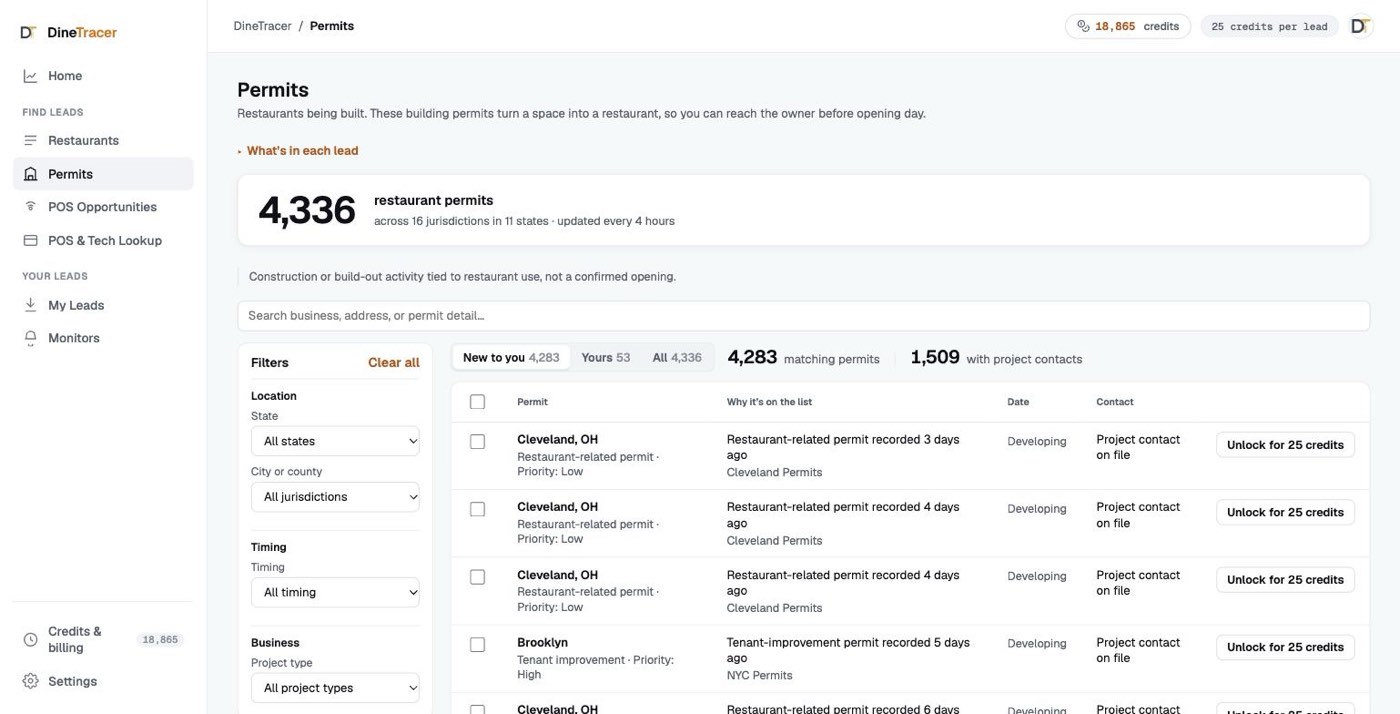
- Pre-open, Just opened and Permits
- POS & Tech Lookup
- New monitor
- Monitors
- The Map
- My Leads
- Key distinctions
- What the data can’t tell you
Credits & ownership
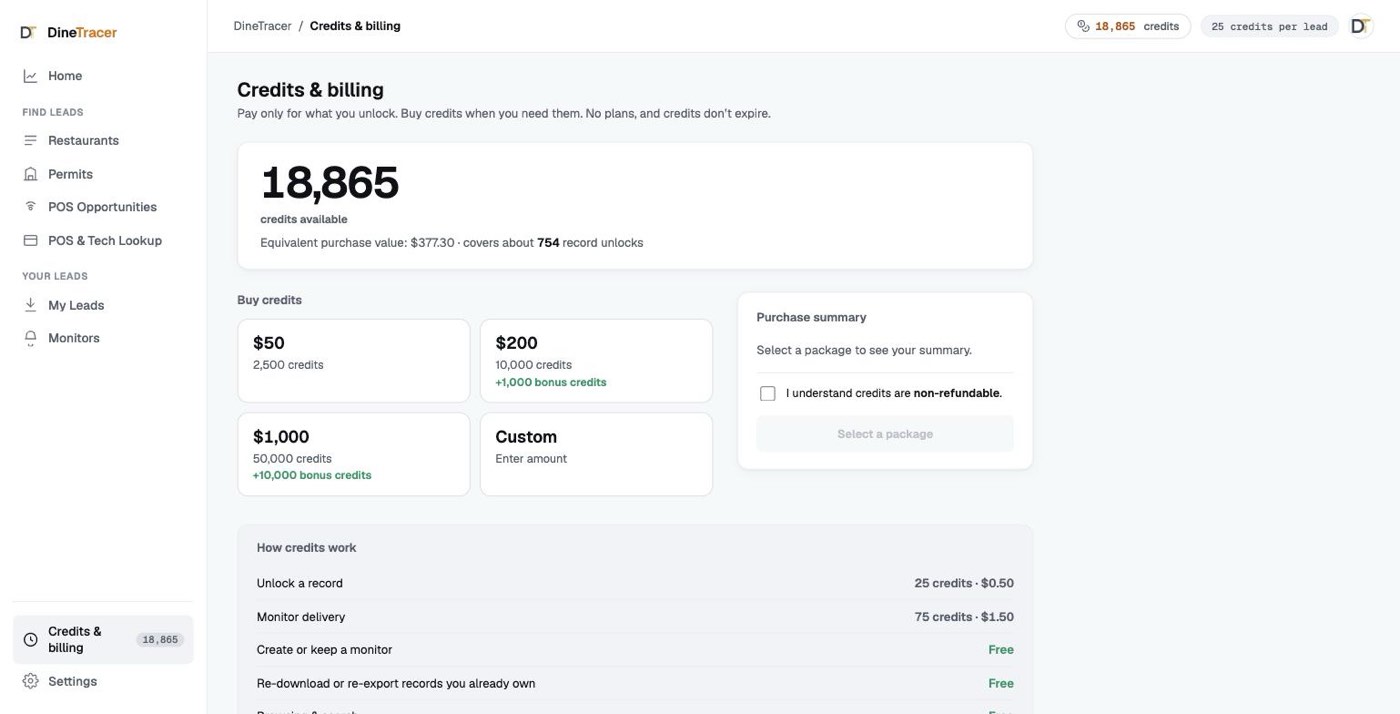
Everything runs on credits. 1 credit = $0.02, and you buy them in packs: $50 for 2,500 credits (100 leads), $200 for 10,000 credits + 1,000 bonus (440 leads), $1,000 for 50,000 credits + 10,000 bonus (2,400 leads). A new account starts with a 50-credit welcome grant, enough for 2 leads. Browsing and previewing are always free. You only spend when you unlock or export.
Invite a colleague. Your invite link is under Credits & billing. People who sign up with it start with 100 free credits instead of 50, and when one of them first buys credits you get 500 credits. The same section shows how many signed up and what you’ve earned.
What things cost
- Unlock or export a lead: 25 credits ($0.50). That shows the business name, address and contact details.
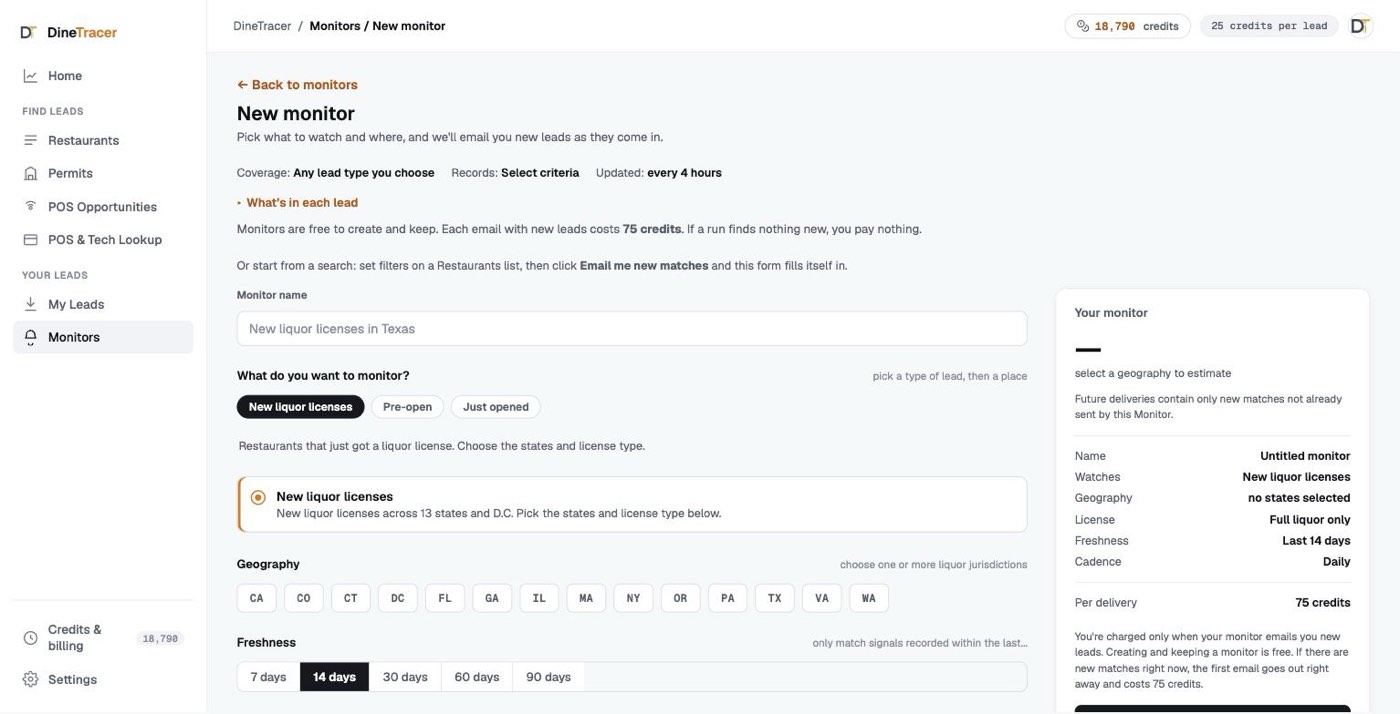
- Create a Monitor: free. Each Monitor email that has new leads costs 75 credits per delivery ($1.50), however many leads it contains. A run with no new leads is free.
- Re-download what you own: free. Once you’ve paid for a lead, downloading it again costs nothing, anywhere in the app.
- No double charges. Ownership is shared across products, so another export never charges you for a lead you already own.
- Repeat exports skip what you have. Running the same paid export again leaves out the leads it already delivered.
Home
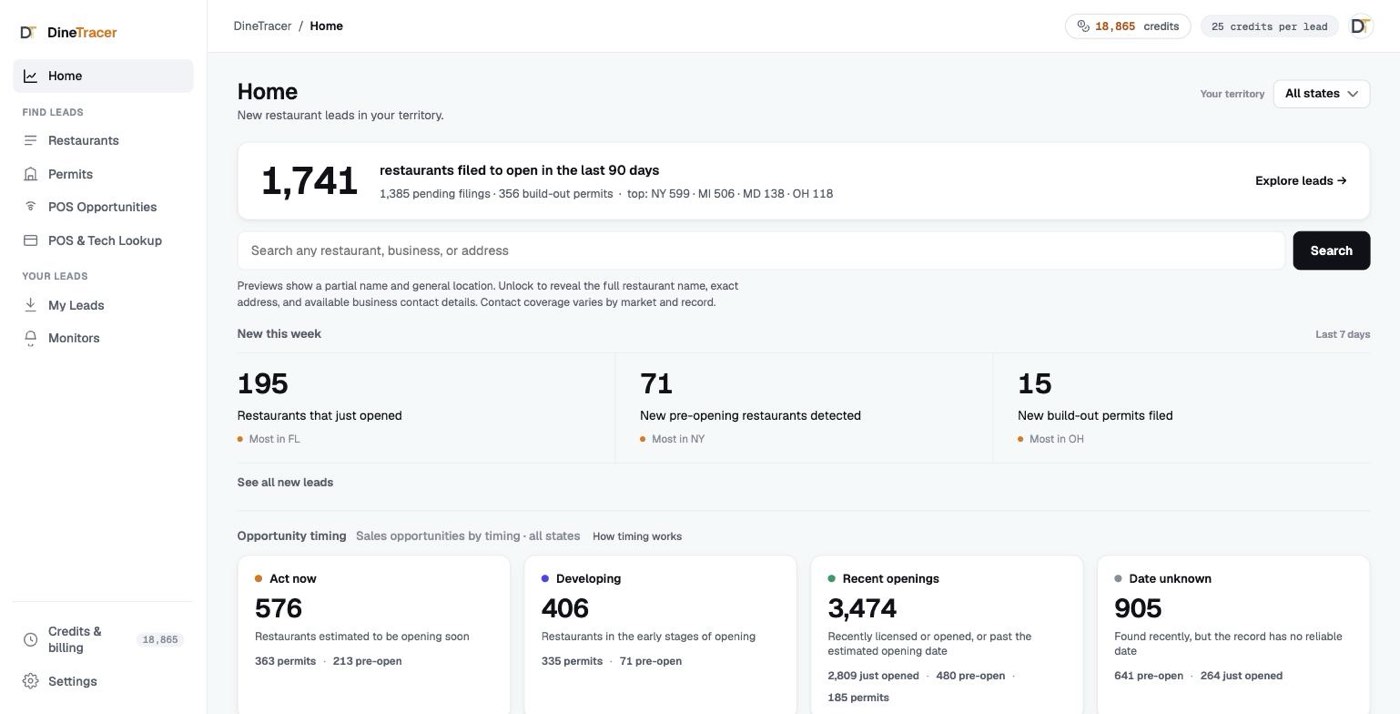
The first screen after you sign in, kept short on purpose. Pick your state at the top and everything on Home follows it. A headline shows how many restaurants filed to open in the last 90 days, with a search box under it. New this week shows the latest leads, and the timing breakdown splits them into Act now, Developing, Recent openings and Date unknown. Your credit balance sits in the top bar and at the bottom of the sidebar. New accounts see a short “Start here” card that asks what you sell and points you to the right list. Until you’re set up, a Setup checklist sits at the bottom of the sidebar: what you sell, your state, your first unlock and your first Monitor.
Restaurants
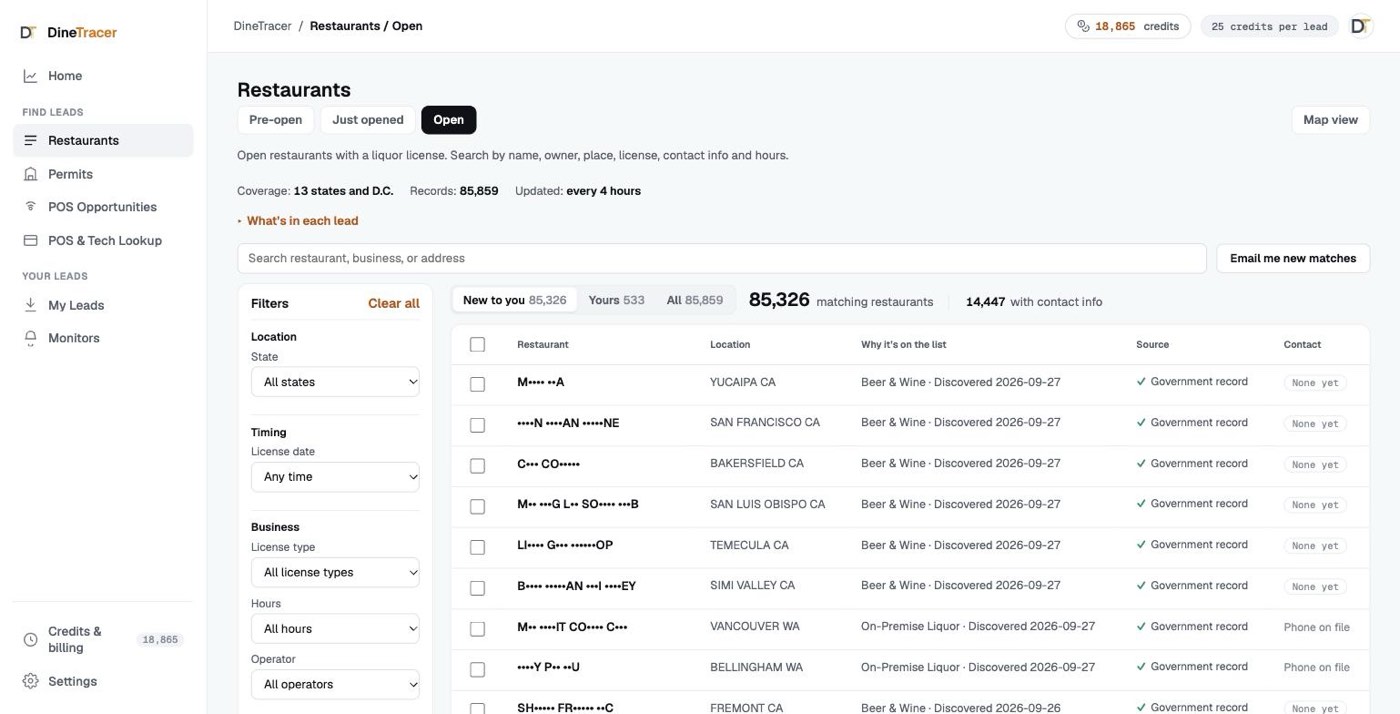
Restaurants has three lists you switch between at the top: Pre-open, Just opened and Open, plus a Map view. The Open list is the Restaurant Database: restaurants on a government liquor-license record, plus every restaurant New York City's health department lists (liquor license or not), with operator, hours, phone, website, rating and category. Filter it by license date to find the newly licensed ones. It tells you who the restaurants are and how to reach them. Filters sit in a panel on the left, grouped by location, timing, business and contact. Tabs above the table switch between New to you (leads you haven’t bought), Yours and All. If a search finds nothing, the page suggests the one filter to loosen that would return results. Click any row to open it in a side panel next to the list; step through the list with the arrows at the top of the panel or the ↑ ↓ keys, and the list stays in view. Rows stay masked until you unlock them (25 credits each), so you can check the columns and the count for free first. There is no POS column here. POS and other technology are a separate product (POS & Tech Lookup).
POS Opportunities
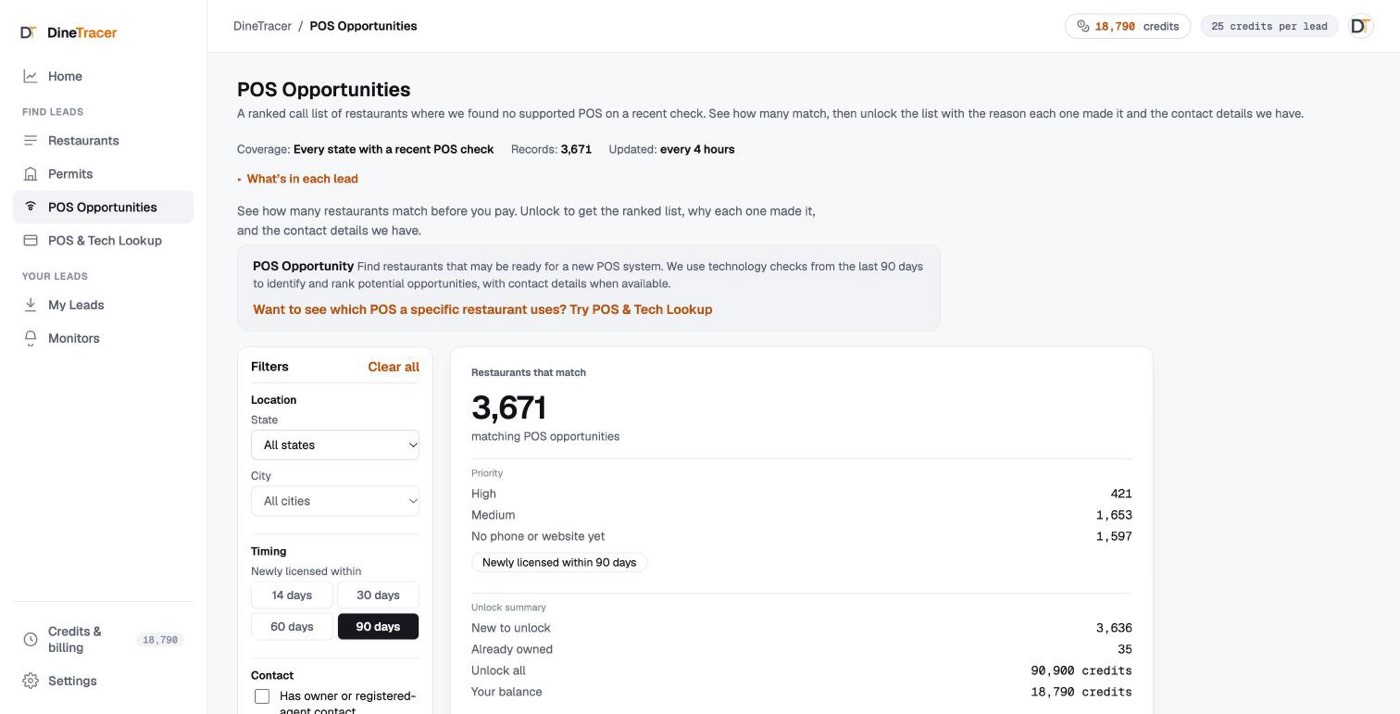
A ranked call list of restaurants with no POS on their website. It starts from the Restaurant Database, keeps the restaurants where a recent website check found no supported POS, and ranks them by the contact details on file and how recently they were licensed.
How a POS Opportunity qualifies
- What it finds. Restaurant Database restaurants where a recent website check found no supported POS. It doesn’t show the restaurant’s full set of tools (that’s POS & Tech Lookup), and it never says a restaurant needs or wants a new POS.
- Narrow the list. The filter panel on the left narrows by State, a City within that state, license date, and whether an owner or registered-agent contact is on file.
- Ranked and explained. Each row has an priority and a why it’s on the list note: why it qualified, which contact details are on file, and when it was licensed. The CSV exports best-first with no duplicates.
- Older lists. Insurance, Staffing and Equipment lists you already bought are still free to download again from My Leads. We no longer build new ones.
Early leads: Pre-open, Just opened and Permits
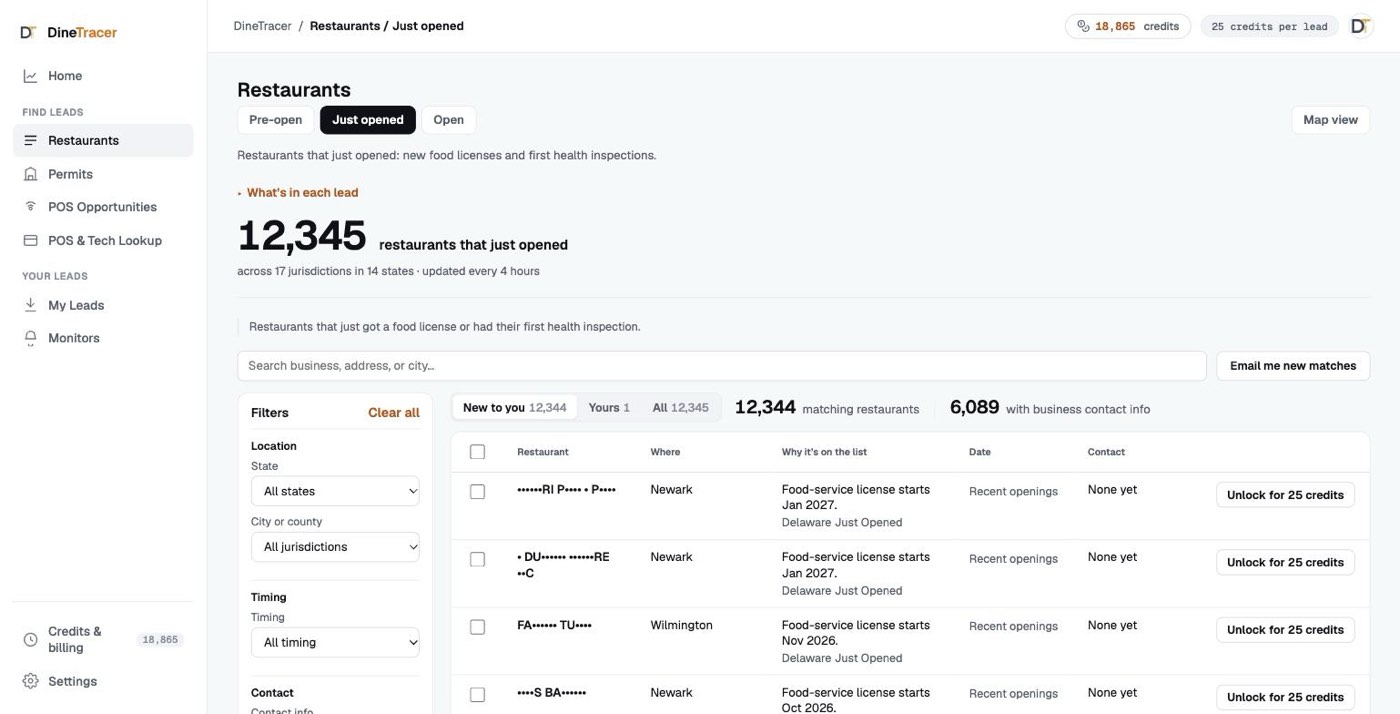
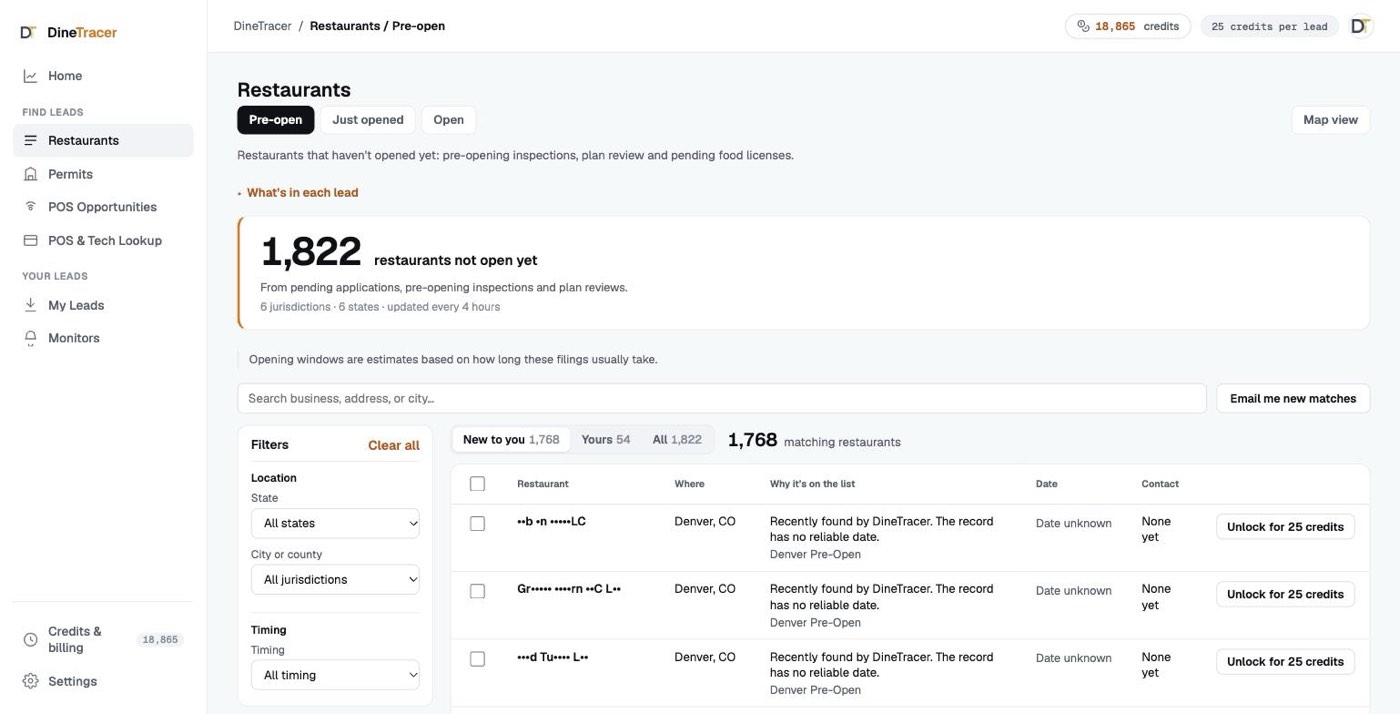
Three kinds of early leads beyond the liquor-license list. Pre-open and Just opened are stages under Restaurants. Permits has its own place in the sidebar. Each has search, a filter panel on the left (state, city or county, timing), the same New to you, Yours and All tabs, row checkboxes, and each lead unlocks for 25 credits. On Pre-open and Just opened, Email me new matches turns your search into a Monitor.
Pre-open vs Just opened
- Pre-open comes first. Pre-opening inspections, plan reviews and pending food licenses, before the doors open.
- Just opened is around opening. Newly recorded licenses and first inspections.
- A first inspection is not a pass or proof of readiness. It means the opening process has started. The restaurant may not be open yet.
POS & Tech Lookup
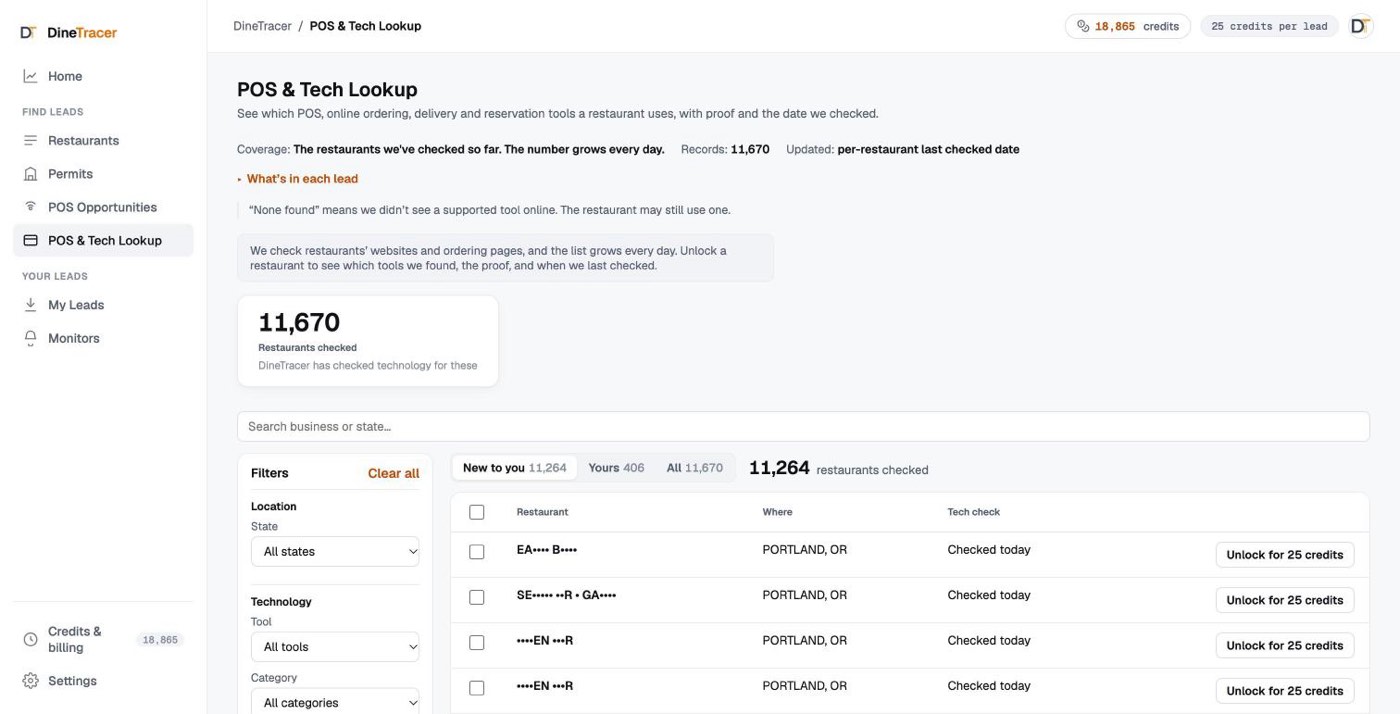
A separate product for researching what a restaurant already uses. DineTracer checks each restaurant’s website and online-ordering links for POS, online ordering, delivery, reservations and social tools, and shows what it found, the evidence, and when we last checked. You see the latest check only, with no history. Like the other lists, filters sit in a panel on the left (state, tool, category and result) with the New to you, Yours and All tabs above the table. A tool, category or result filter shows how many restaurants match; you see which ones, and what we found, after you unlock.
How to read the results
- “No POS detected” is not proof of absence. It means we found no POS or ordering system in public evidence. The restaurant may still have one.
- Some results are ordering tools. DoorDash’s direct ordering, Slice and ChowNow are online-ordering systems, and we label them that way.
- It’s for research. To build a list of who to call, use POS Opportunities.
New monitor
Save a search once and let it run. Open Monitors and click New monitor, or click Email me new matches on a Restaurants list to start from that search. Pick a lead type (new liquor licenses, Pre-open or Just opened), a place, how fresh the leads should be, and how often to check. Permits can’t be monitored yet because most permits don’t name the business. Monitors are free to create and keep. Each email that has new leads costs 75 credits ($1.50), and a check with nothing new costs nothing. A Daily Monitor runs once per UTC calendar day. New Monitors don’t offer POS filtering.
Monitors & Deliveries
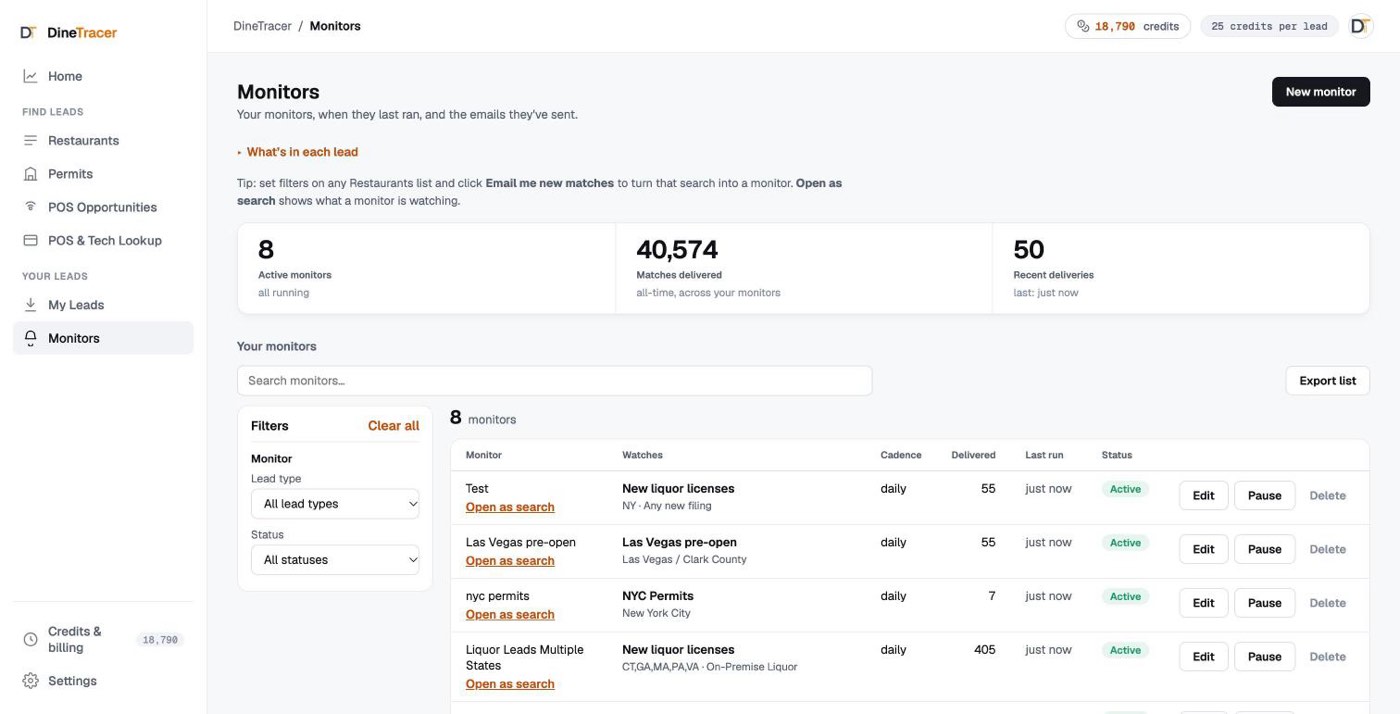
Every Monitor you create lives here. A Monitor is the saved search. A Delivery is one email of new leads it found, with a CSV attached. You can pause, resume or delete a Monitor, and see how many leads each one has delivered and when it last ran. Open as search under a Monitor’s name opens the list it watches with the same filters, so you can browse what it’s catching.
The Map
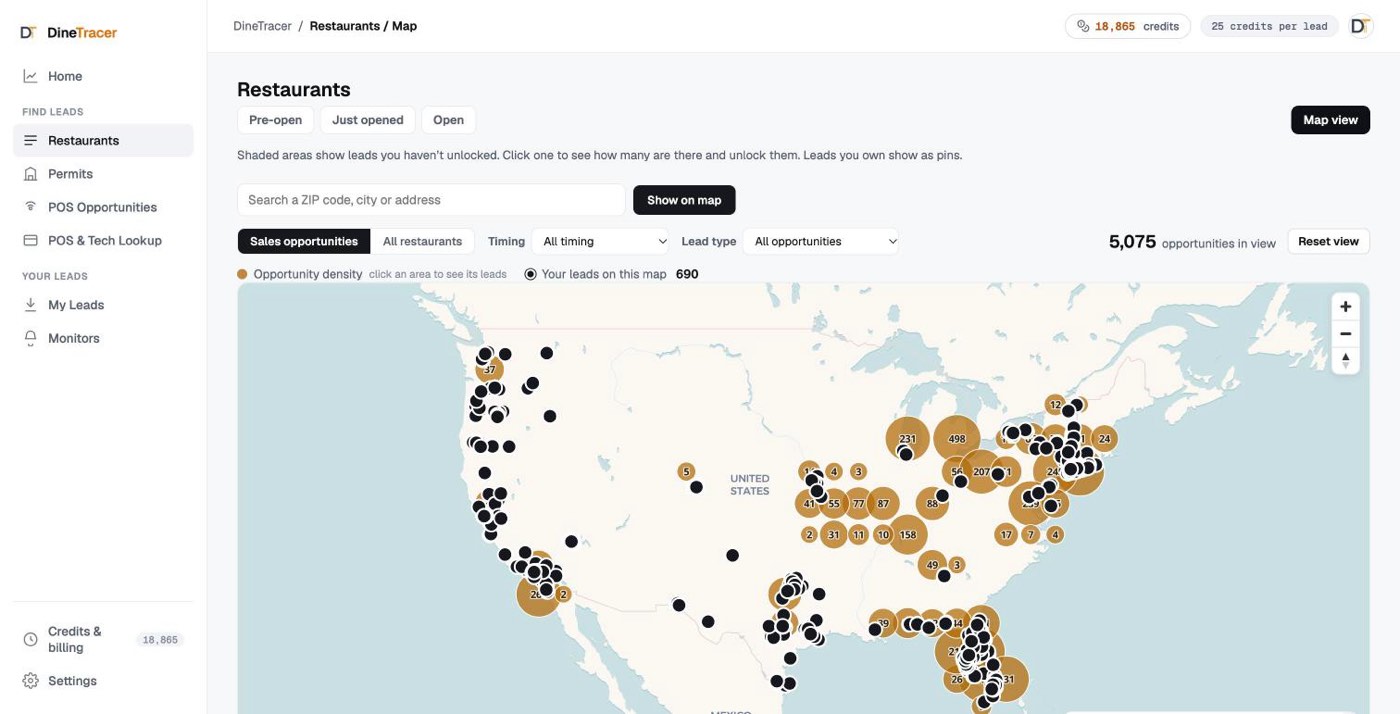
See where new restaurants are opening. Leads you haven’t unlocked show as shaded areas, filtered by timing and lead type, so no exact location is shown until you pay for it. Click a shaded area to see how many leads are inside and unlock them there. Leads you unlock appear as exact pins, each with a Google place-card preview inside DineTracer.
My Leads
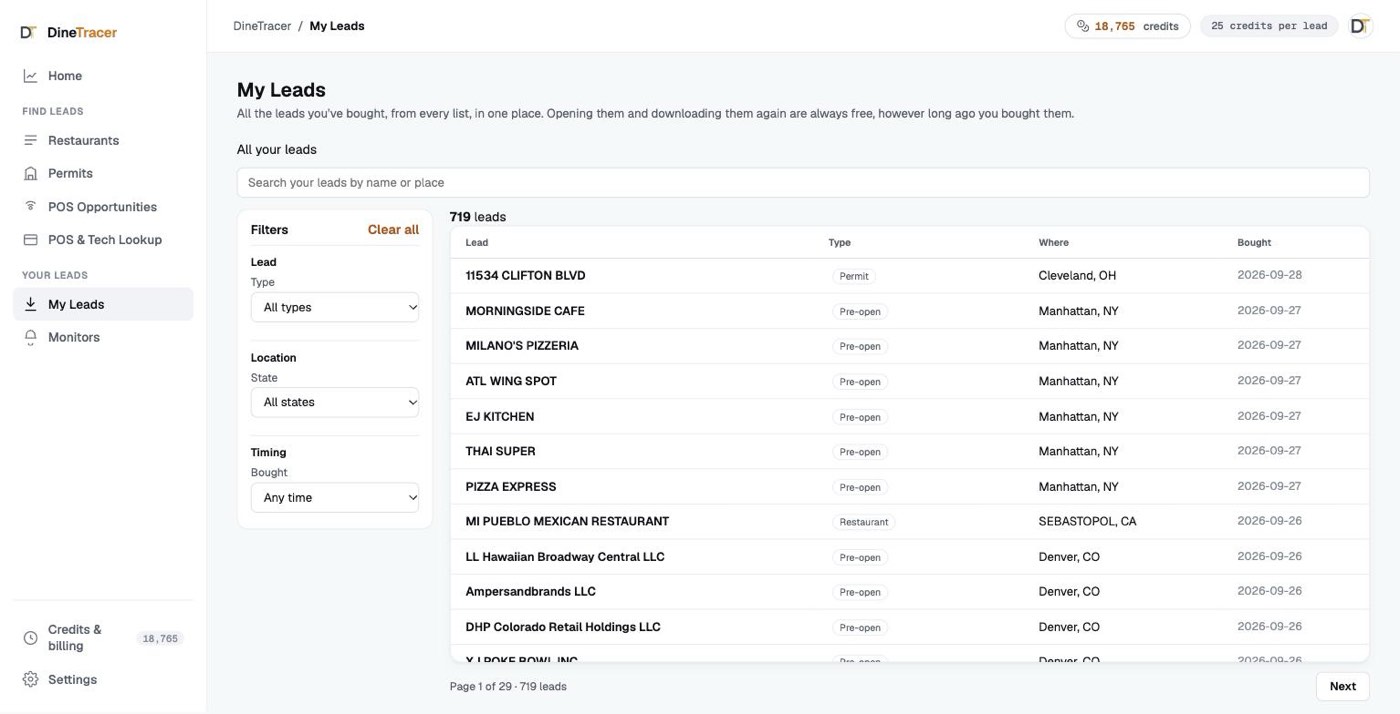
Everything you’ve bought is in My Leads. The top table, All your leads, lists every lead you bought from every list (Restaurants, Just opened, Pre-open, Permits, POS Opportunities and POS & Tech Lookup), newest first. Filter it by type, state and when you bought it, or search by name or place. Click a row to open everything you paid for in the side panel, and step through the list with the arrows or the ↑ ↓ keys. Below it, Purchases lists each unlock you made. View opens that purchase’s leads, and Download latest gives you a CSV with each lead’s current information. Leads you unlocked one at a time on the same day share one row. All of it is always free, however long ago you bought it. Right after an Open-list unlock you can also use Download as bought, the file exactly as it was at that moment. Your credit history is under Credits & billing.
Key distinctions
A few features look alike but do different jobs
- Restaurant Database vs POS & Tech Lookup. The database is who and where. POS & Tech Lookup is the separate record of the tools we found. Database rows and exports never include tech fields.
- POS Opportunities vs Restaurant Database. The database is the full table you unlock row by row. POS Opportunities is the quick way to a ranked CSV of restaurants with no supported POS found.
- POS Opportunity vs POS & Tech Lookup. POS Opportunities uses one yes-or-no result (no supported POS found) to build a call list. POS & Tech Lookup shows the full evidence behind each result.
- Monitor vs Delivery. A Monitor is the saved search. A Delivery is one email of new leads it found. Creating and keeping a Monitor is free, and you pay 75 credits per delivery, only when it sends you new leads.
What the data can’t tell you
Timing, gaps and sources
- Timing is an estimate. Where DineTracer shows a window, it’s an estimated opening window based on the filing type. It doesn’t tell you when the owner will buy anything, and some restaurants never open.
- Detection is not proof of absence. “No POS detected” means we found nothing in public evidence.
- A first inspection is not a pass or proof of readiness. It marks the start of the opening process.
- Blank fields are normal. Public records are uneven. A phone, website or hours field can be blank because no public source had it yet.
- Where it comes from. Leads come from government filings, Google business listings and a business’s own website. We don’t scrape LinkedIn, social networks or people-search websites. When you unlock a lead, owner contact comes from a public business-registration filing, matched by a data provider. The phone and email can be personal. Numbers on Do-Not-Call lists are left out.
Ready to try it?
Start with 50 free credits. No credit card. Questions? Email [email protected] and we’ll help.